
Download SurveyCalc AutoCAD Plugin
Grab the latest plugin installer for your AutoCAD survey workflow.
Total downloads: 101
Included with AutoCAD Plugin, Windows Standalone, and Android licenses
How to access your tutorial videos
Sign in to this website with the same email address you used to purchase your license. Use Google sign-in or email and password. An active license for any of the three editions gives you access to the same tutorial library.
- Open LoginOn surveycalc.io, choose Login from the menu.
- Use your purchase emailChoose Sign in with Google and select the matching account, or use email and password with that same email address. If asked, verify your email and refresh your status.
- Open TutorialsOnce your license is verified, click Go to Tutorials or choose Tutorials from the menu.
Already paid but cannot access the videos? Check that you selected the purchase account, then refresh your license status. Get help with tutorial access.
How do I install or update the SurveyCalc Plugin?
Before installing SurveyCalc, make sure AutoCAD is already installed on your machine. Use the latest SurveyCalc installer, version 7.0.9, for a new installation or an update.
- Close the version of AutoCAD you want to use with SurveyCalc, then double-click the downloaded SurveyCalc installer.
If Windows shows a "Windows protected your PC" message, this is normal for a new installer that is not yet recognized by Windows Defender. Click More info, then click Run anyway to continue.
- On the Choose where SurveyCalc will load screen, select the version of AutoCAD you want to use from the Installed product dropdown.
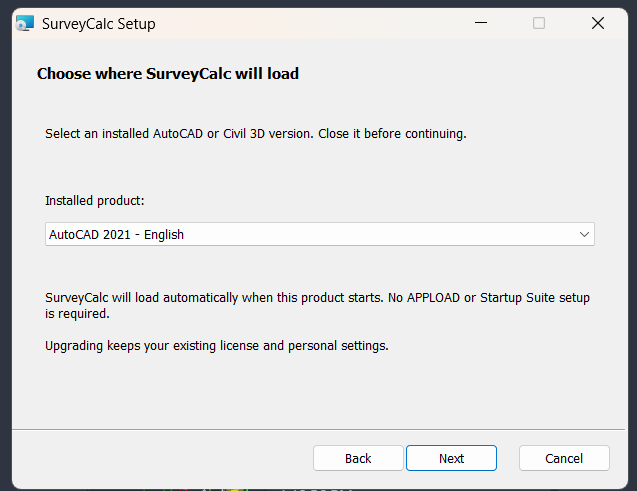
- Click Next and follow the installer prompts to finish setup.
- Open the version of AutoCAD you selected. SurveyCalc will load automatically each time AutoCAD starts.
No manual APPLOAD or Startup Suite setup is required. Updating SurveyCalc keeps your existing license and personal settings.
How do I pay and activate via PayMongo?
Follow these steps right after installation:
- When you first open the selected version of AutoCAD with SurveyCalc loaded, the SurveyCalc Licensing window will appear for activation.
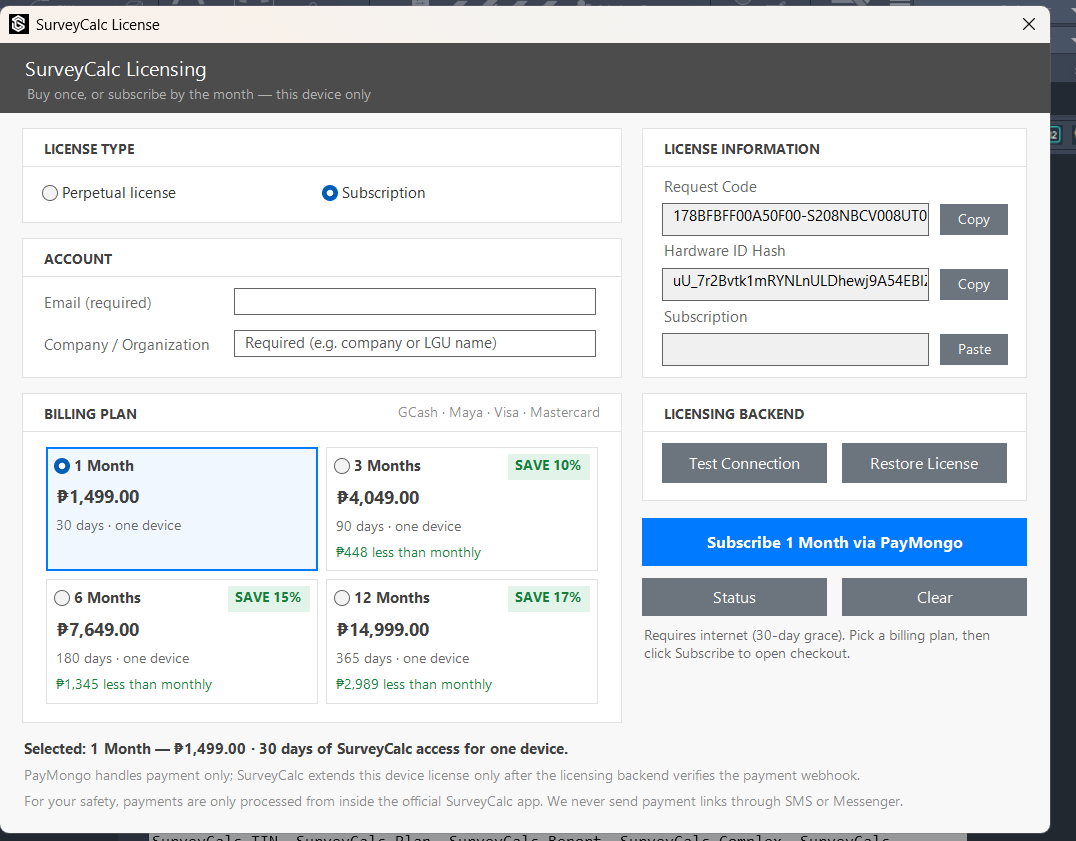
- Under License Type, choose Subscription or Perpetual license (valid for the lifetime of the licensed device). Hardware changes, such as replacing the motherboard or hard drive, invalidate the perpetual license. No recovery option is available; a new license is required.
- In Account, enter your Email and Company / Organization. Both fields are required. Use this same email when signing in to the website with Google or email and password to access tutorial videos.
- For a subscription, choose 1 Month, 3 Months, 6 Months, or 12 Months under Billing Plan. Review the selected plan and price before continuing.
- Click the blue PayMongo button for your selected license or plan, such as Subscribe 1 Month via PayMongo. Complete your payment on the PayMongo checkout page.
- Return to SurveyCalc and click Status to check your activation. Your license is issued automatically once payment is verified. Use the same process to renew your subscription.